Choose a clear source
Use an image where the main subject is visible, reasonably sharp, and separated from the background. Strong contrast makes edges easier to inspect.
Access guide
Cutout pro free access can be a practical way to test an image cutout workflow. Prepare a clear source image, follow the upload steps, then inspect edges before keeping the result.
Start here
A smooth run begins with a suitable source image and a clear idea of the result you need.
Use an image where the main subject is visible, reasonably sharp, and separated from the background. Strong contrast makes edges easier to inspect.
Decide whether you need a transparent subject, a plain background, or a simple replacement scene. A specific request reduces unnecessary revisions.
Review hair, fingers, thin objects, shadows, and low-contrast edges before downloading or placing the cutout into a larger design.
Related guides
Use these related routes when your goal shifts from basic access to a specific image task or device workflow.
This guide focuses on using the cutout workflow through a browser-based surface.
This page separates photo-making tasks from the narrower job of removing a background.
This tutorial lays out a practical sequence for uploading, editing, checking, and exporting.
Visual check
A before-and-after view helps distinguish a successful subject extraction from an image that still needs cleanup.
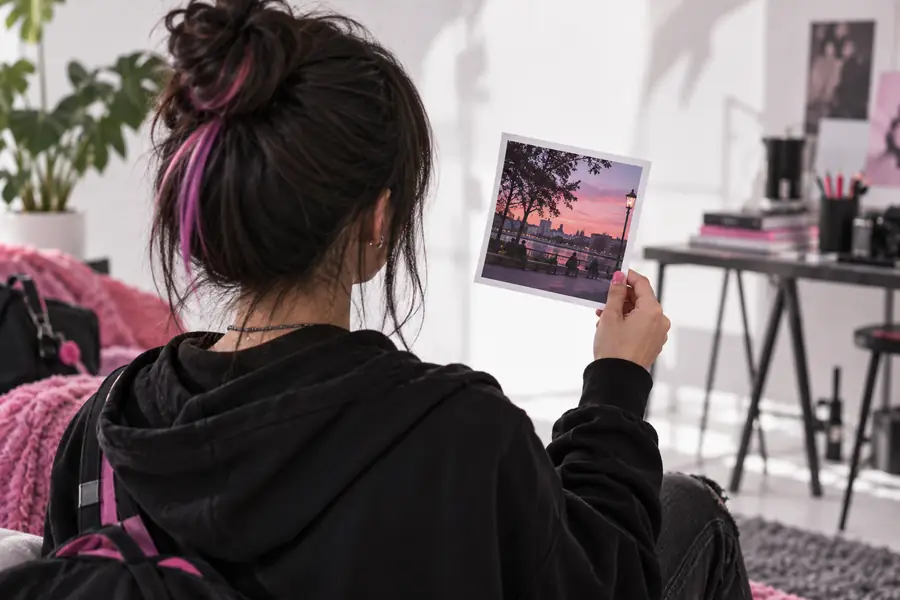

Inspect the subject outline, not just the background.
Know the limits
A free access route is useful for testing, but it cannot make every difficult image correct on the first attempt.
Fine patterns, crowds, foliage, and overlapping objects can confuse the boundary between subject and background.
WorkaroundCrop closer to the subject or use a cleaner source image before trying again.
White clothing on a pale wall, motion blur, hair, glass, and semi-transparent objects may produce uneven edges.
WorkaroundIncrease source contrast where possible and zoom in for a careful inspection.
A basic cutout does not automatically solve perspective, realistic shadows, color matching, or a complete product scene.
WorkaroundTreat the extracted subject as one layer and finish the composition in an editor suited to those adjustments.
A preview can look acceptable at normal size while showing halos or missing details when enlarged.
WorkaroundCheck the intended final size and background before publishing or sending the image onward.
Compare the paths
The right choice depends on whether you are testing one image or building a repeatable editing process.
Browser cutout route
A quick test with one image and a clearly defined subject
Manual editor workflow
A project requiring hands-on control from the first edit
Browser cutout route
Clear subject, useful contrast, and a supported image upload
Manual editor workflow
Any source that the chosen editor can open
Browser cutout route
Review the generated edge and correct issues if the workflow allows
Manual editor workflow
Direct control over selections, masks, and edge refinement
Browser cutout route
Useful for separating a subject from its original scene
Manual editor workflow
Useful when you need detailed replacement-scene work
Browser cutout route
Inspect hair, thin parts, shadows, and halos before export
Manual editor workflow
Inspect the same details while refining the mask
Browser cutout route
Short path for evaluating whether the image is suitable
Manual editor workflow
Usually more setup before the first finished cutout
Browser cutout route
Depends on consistent inputs and the available workflow controls
Manual editor workflow
Depends on saved steps, templates, and the operator
Next step
Start with a clear subject, describe the edit you want, and judge the edges at the size where the image will actually be used. That small check prevents most avoidable surprises.
Common questions
The phrase can refer to trying the cutout workflow without choosing a paid editing process first, but access terms and available capabilities can change. Check the destination workflow for the current details before relying on it for a larger batch.
A sharp image with a visible subject and clear contrast against its background is the safest starting point. Simple backgrounds and distinct outlines are easier to inspect than hair, glass, smoke, or overlapping objects.
No image workflow handles every background equally well. Busy scenes, low contrast, motion blur, transparent materials, and fine strands may leave halos or missing details, so review the result before use.
Sometimes. A clean source may need little or no further work, while difficult edges can benefit from masking, cropping, color correction, or shadow adjustments in an image editor.
Place the subject against both a light and a dark background, zoom into thin edges, and compare it with the original. Also confirm that the final dimensions and background treatment match the intended use.