Choose a clear source image
Use the highest-quality original available, with the subject fully visible and important edges separated from similarly colored background areas.
Practical tutorial
This guide shows how to use cutout pro online from the first upload through the final review. Follow the workflow to prepare a cleaner subject, inspect edge quality, and avoid common mistakes before saving your result.

Use this page to understand the browser-based workflow and what to check before processing an image.
Compare the practical access considerations before choosing an image-cutout workflow.
See how photo-making tasks differ from a focused background-removal workflow.
A little preparation improves the result more than repeated uploads. Start with a source image that gives the subject enough separation from its surroundings.
Use the highest-quality original available, with the subject fully visible and important edges separated from similarly colored background areas.
Before uploading, identify the main subject, fine details, shadows, and any objects that should be removed rather than preserved.
Know whether you need a transparent cutout, a replacement background, or a simple subject image so you can judge the result against its real use.
Work through the process in order, then pause for a visual inspection. The review step is essential when hair, transparent objects, product handles, or soft shadows matter.
Most disappointing cutouts come from the source image or from skipping the review stage. Use the before-and-after comparison as a quick checklist for what to inspect.
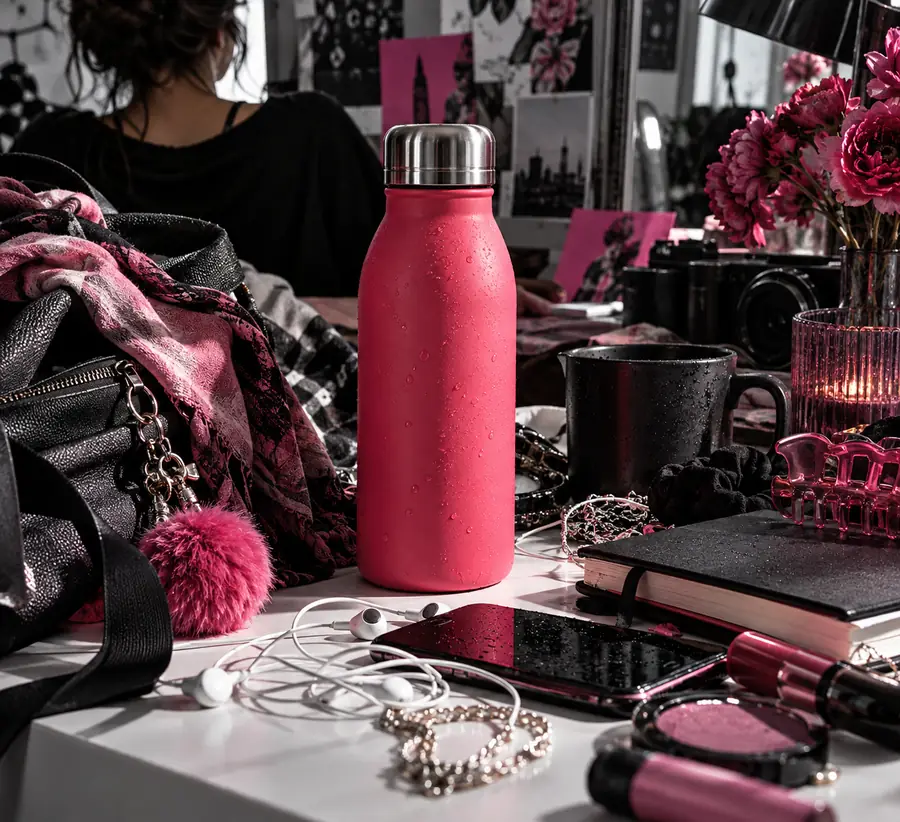

Compare the outline, small gaps, and shadow before using the result.
Use these checks when a basic cutout is not enough. They help you decide whether to change the source, refine the request, or adjust the result after processing.
Basic workflow
Use a clear image with the subject visible.
Careful workflow
Choose the largest clean original and avoid heavy compression.
Basic workflow
Accept moderate contrast when the outline is obvious.
Careful workflow
Prefer strong contrast around hair, corners, and narrow gaps.
Basic workflow
Check the general silhouette first.
Careful workflow
Zoom in on hair, transparent parts, straps, and handles.
Basic workflow
Keep a shadow when it belongs to the subject.
Careful workflow
Decide whether the shadow is useful or should be removed for a transparent result.
Basic workflow
Add a new background only after the cutout looks clean.
Careful workflow
Match lighting, scale, and edge softness to the replacement scene.
Basic workflow
Check the image at normal viewing size.
Careful workflow
Inspect both the full composition and the smallest important edges.
Start with one representative image and apply the preparation, processing, and review steps above. A deliberate final check makes it easier to spot edge problems before the cutout is used in a listing, portrait, design, or presentation.
Begin with the clearest original image you have and upload it through the online workflow. Make sure the main subject is visible and decide in advance whether you need a transparent cutout or another background treatment.
Avoid unnecessary compression, heavy blur, and backgrounds that closely match the subject. Keep important details such as hair, handles, straps, and product edges inside the frame so they can be reviewed after processing.
Low contrast, small image dimensions, motion blur, and overlapping objects can make boundaries difficult to identify. Try a cleaner source image, then inspect the result closely around fine details instead of judging only the full-size preview.
Check the silhouette, internal gaps, fine edges, and any retained shadow at both normal size and close range. It is ready when the subject looks natural against its intended background and no important details have been clipped.
The same preparation and review process can be applied to many subject types, including products and portraits. The checks matter most around hair, transparent materials, narrow gaps, reflective surfaces, and soft shadows.